> ## Documentation Index
> Fetch the complete documentation index at: https://docs.anglpay.com/llms.txt
> Use this file to discover all available pages before exploring further.
# PayPal
> Configure PayPal as a payment method in Gr4vy.
PayPal is a digital wallet that enables buyers to pay using their PayPal balance, bank accounts, or cards. It provides a trusted payment experience with buyer protection and is widely recognized by consumers worldwide.
## Setup
Follow the [PayPal setup instructions](./paypal) before configuring PayPal payments.
### Vaulting
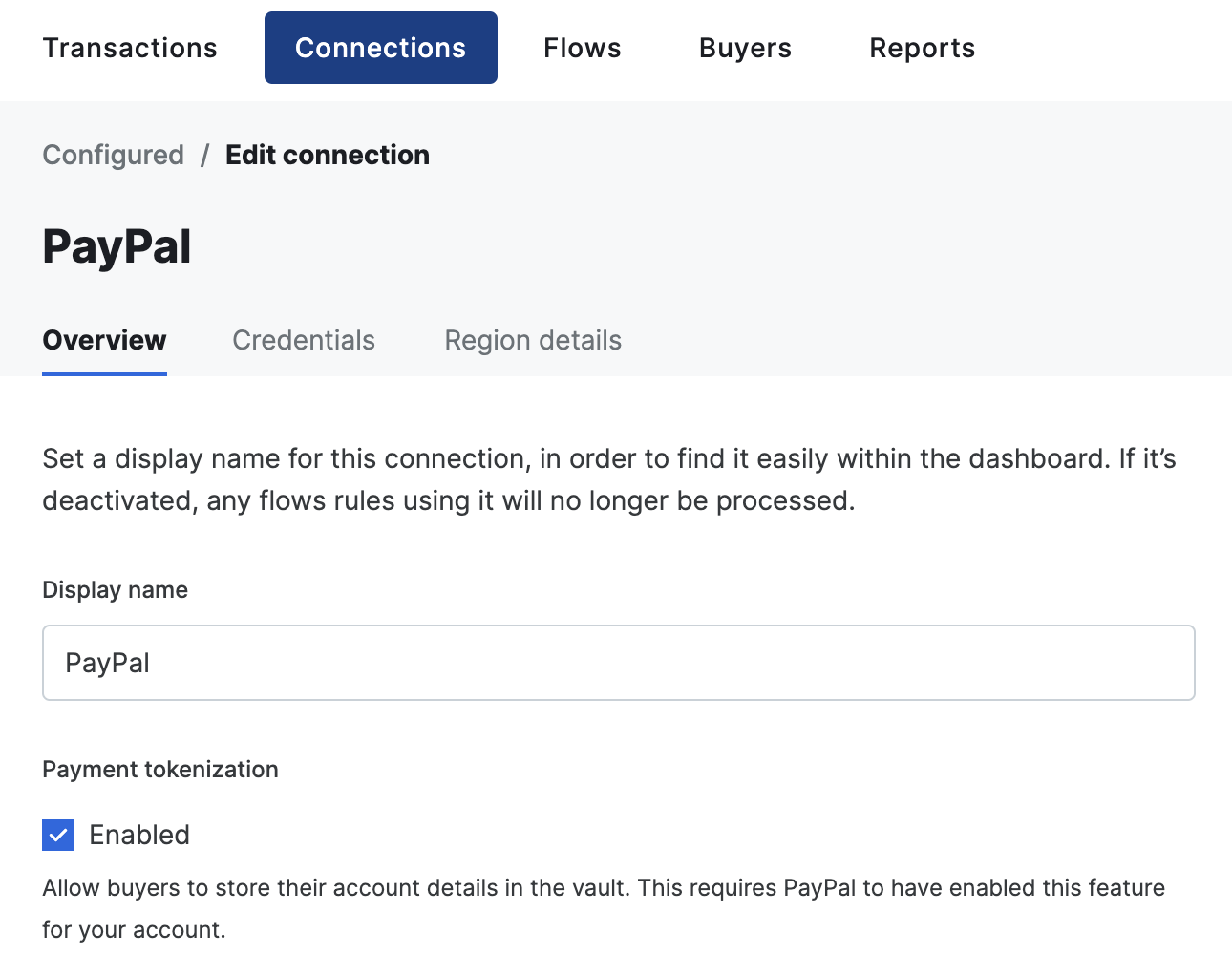
To allow customers to tokenize their PayPal account for future payments, you need to contact PayPal and request that your account be enabled for **Vault**.
Once Vault has been enabled on your PayPal merchant account, you can toggle the tokenization feature on within the PayPal connector settings in the dashboard.
 ### Ingest billing and shipping details
By default, billing, and shipping details received from PayPal are not imported. To enable this feature, head over to **Connections** → **Configured** and select your PayPal connector. Next, go to **Credentials** and toggle **Import billing details** and/or **Import shipping details**.
When **Import billing details** is enabled, any of the user's name, email address, and billing address are automatically imported into your transaction, merging it with any data already present on the transaction. Linked buyers are not updated, but only the snapshot of the buyer on the transaction.
When **Import shipping details** is enabled, the user's shipping address is automatically **requested** and imported into your transaction, merging it with any data already present on the transaction. Linked buyers are not updated, but only the snapshot of the buyer on the transaction.
The ingestion of billing and shipping details is not available for tokenized payments.
### Server-side shipping callbacks
When **Import shipping details** is enabled, you can configure PayPal to call your server whenever the buyer changes their shipping address or selects a different shipping option during checkout. This lets you return updated shipping costs and available options in real time.
To enable this, pass `order_update_callback_config` in `connection_options["paypal-paypal"]` when creating a transaction:
| Field | Description |
| ----------------- | -------------------------------------------------------------------------------------------------------------------------------------------------------------------------------------- |
| `callback_url` | The URL PayPal calls when the buyer updates their shipping details. |
| `callback_events` | Array of events to subscribe to. `"SHIPPING_ADDRESS"` fires when the buyer changes their shipping address; `"SHIPPING_OPTIONS"` fires when they change their selected shipping option. |
When `order_update_callback_config` is set and shipping ingestion is enabled, Gr4vy sets the PayPal `shipping_preference` to `GET_FROM_FILE` so the buyer's shipping details flow through your callback endpoint rather than being provided upfront.
```csharp C# theme={"system"}
var transaction = await client.Transactions.CreateAsync(
transactionCreate: new TransactionCreate()
{
Amount = 1299,
Currency = "USD",
Country = "US",
PaymentMethod =
TransactionCreatePaymentMethod.CreateRedirectPaymentMethodCreate(
new RedirectPaymentMethodCreate()
{
Method = "paypal",
Country = "US",
Currency = "USD",
RedirectUrl = "https://example.com/callback",
}
),
ConnectionOptions = new Dictionary()
{
["paypal-paypal"] = new Dictionary()
{
["order_update_callback_config"] = new Dictionary()
{
["callback_url"] = "https://example.com/shipping-callback",
["callback_events"] = new List { "SHIPPING_ADDRESS", "SHIPPING_OPTIONS" },
}
}
}
}
);
```
```go Go theme={"system"}
amount := int64(1299)
currency := "USD"
country := "US"
method := components.RedirectPaymentMethodCreateMethodPaypal
redirectUrl := "https://example.com/callback"
redirectPaymentMethodCreate := components.RedirectPaymentMethodCreate{
Method: method,
Country: country,
Currency: currency,
RedirectURL: redirectUrl,
}
paymentMethod := components.CreateTransactionCreatePaymentMethodRedirectPaymentMethodCreate(redirectPaymentMethodCreate)
transactionCreate := components.TransactionCreate{
Amount: amount,
Currency: currency,
Country: &country,
PaymentMethod: &paymentMethod,
ConnectionOptions: map[string]interface{}{
"paypal-paypal": map[string]interface{}{
"order_update_callback_config": map[string]interface{}{
"callback_url": "https://example.com/shipping-callback",
"callback_events": []string{"SHIPPING_ADDRESS", "SHIPPING_OPTIONS"},
},
},
},
}
transaction, err := client.Transactions.Create(ctx, transactionCreate, nil, nil, nil)
```
```java Java theme={"system"}
CreateTransactionResponse transactionResponse = gr4vyClient.transactions().create()
.transactionCreate(TransactionCreate.builder()
.amount(1299L)
.currency("USD")
.country("US")
.paymentMethod(TransactionCreatePaymentMethod.of(RedirectPaymentMethodCreate.builder()
.method(RedirectPaymentMethodCreateMethod.PAYPAL)
.country("US")
.currency("USD")
.redirectUrl("https://example.com/callback")
.build()))
.connectionOptions(Map.of(
"paypal-paypal", Map.of(
"order_update_callback_config", Map.of(
"callback_url", "https://example.com/shipping-callback",
"callback_events", List.of("SHIPPING_ADDRESS", "SHIPPING_OPTIONS")
)
)
))
.build())
.call();
Transaction transaction = transactionResponse.transaction().orElse(null);
```
```php PHP theme={"system"}
$transactionCreate = new TransactionCreate(
amount: 1299,
currency: 'USD',
country: 'US',
paymentMethod: new RedirectPaymentMethodCreate(
method: 'paypal',
country: 'US',
currency: 'USD',
redirectUrl: 'https://example.com/callback'
),
connectionOptions: [
'paypal-paypal' => [
'order_update_callback_config' => [
'callback_url' => 'https://example.com/shipping-callback',
'callback_events' => ['SHIPPING_ADDRESS', 'SHIPPING_OPTIONS'],
]
]
]
);
$response = self::$sdk->transactions->create($transactionCreate);
$transaction = $response->transaction;
```
```python Python theme={"system"}
transaction: models.Transaction = client.transactions.create(
amount=1299,
currency="USD",
country="US",
payment_method={
"method": "paypal",
"country": "US",
"currency": "USD",
"redirect_url": "https://example.com/callback",
},
connection_options={
"paypal-paypal": {
"order_update_callback_config": {
"callback_url": "https://example.com/shipping-callback",
"callback_events": ["SHIPPING_ADDRESS", "SHIPPING_OPTIONS"],
}
}
}
)
```
```ts TypeScript theme={"system"}
const transaction = await gr4vy.transactions.create({
amount: 1299,
currency: "USD",
country: "US",
paymentMethod: {
method: "paypal",
country: "US",
currency: "USD",
redirectUrl: "https://example.com/callback"
},
connectionOptions: {
"paypal-paypal": {
order_update_callback_config: {
callback_url: "https://example.com/shipping-callback",
callback_events: ["SHIPPING_ADDRESS", "SHIPPING_OPTIONS"],
}
}
}
})
```
### Checkout experience
You can customize the PayPal Checkout page by passing any of the following fields in `connection_options["paypal-paypal"]` when creating a transaction.
| Field | Description |
| --------------------- | ------------------------------------------------------------------------------------------------------------------------------------------------------------------------------------------------------------------------------------------------------------------------------------------------------------------------------------------------------------------------------------- |
| `user_action` | Controls the label on the PayPal Checkout button. `"PAY_NOW"` (default) shows an immediate pay button; `"CONTINUE"` shows a continue button for deferred-payment flows. |
| `shipping_preference` | Controls how the shipping address is sourced during checkout. `"NO_SHIPPING"` hides the shipping address fields; `"GET_FROM_FILE"` lets the buyer provide or change their address during checkout; `"SET_PROVIDED_ADDRESS"` pre-fills the address you supplied and prevents the buyer from changing it. When omitted, Gr4vy determines this value automatically (see the note below). |
| `brand_name` | The merchant brand name displayed on the PayPal Checkout page. Maximum 127 characters. |
| `landing_page` | The page shown to the buyer when they arrive at PayPal. `"LOGIN"` opens the PayPal login page; `"GUEST_CHECKOUT"` opens the guest checkout page; `"NO_PREFERENCE"` lets PayPal decide. |
| `locale` | A BCP 47 locale tag used to localize the PayPal Checkout page, for example `"en-US"` or `"fr-FR"`. |
`"GUEST_CHECKOUT"` for `landing_page` only takes effect if **PayPal account optional** is enabled in your PayPal merchant account settings. If the setting is not enabled, PayPal falls back to showing the login page regardless.
`locale` is a hint to PayPal and may not always be honored. PayPal also determines locale from the buyer's browser cookies and the configuration of its own SDK, so the effective locale can differ from the value you provide.
```csharp C# theme={"system"}
ConnectionOptions = new Dictionary()
{
["paypal-paypal"] = new Dictionary()
{
["user_action"] = "PAY_NOW",
["shipping_preference"] = "GET_FROM_FILE",
["brand_name"] = "Acme Store",
["landing_page"] = "LOGIN",
["locale"] = "en-US",
}
}
```
```go Go theme={"system"}
ConnectionOptions: map[string]interface{}{
"paypal-paypal": map[string]interface{}{
"user_action": "PAY_NOW",
"shipping_preference": "GET_FROM_FILE",
"brand_name": "Acme Store",
"landing_page": "LOGIN",
"locale": "en-US",
},
},
```
```java Java theme={"system"}
.connectionOptions(Map.of(
"paypal-paypal", Map.of(
"user_action", "PAY_NOW",
"shipping_preference", "GET_FROM_FILE",
"brand_name", "Acme Store",
"landing_page", "LOGIN",
"locale", "en-US"
)
))
```
```php PHP theme={"system"}
connectionOptions: [
'paypal-paypal' => [
'user_action' => 'PAY_NOW',
'shipping_preference' => 'GET_FROM_FILE',
'brand_name' => 'Acme Store',
'landing_page' => 'LOGIN',
'locale' => 'en-US',
]
]
```
```python Python theme={"system"}
transaction = client.transactions.create(
amount=1299,
currency="USD",
country="US",
payment_method={
"method": "paypal",
"country": "US",
"currency": "USD",
"redirect_url": "https://example.com/callback",
},
connection_options={
"paypal-paypal": {
"user_action": "PAY_NOW",
"shipping_preference": "GET_FROM_FILE",
"brand_name": "Acme Store",
"landing_page": "LOGIN",
"locale": "en-US",
}
}
)
```
```ts TypeScript theme={"system"}
const transaction = await gr4vy.transactions.create({
amount: 1299,
currency: "USD",
country: "US",
paymentMethod: {
method: "paypal",
country: "US",
currency: "USD",
redirectUrl: "https://example.com/callback",
},
connectionOptions: {
"paypal-paypal": {
user_action: "PAY_NOW",
shipping_preference: "GET_FROM_FILE",
brand_name: "Acme Store",
landing_page: "LOGIN",
locale: "en-US",
},
},
});
```
`shipping_preference` is automatically determined by Gr4vy when not set. It is set to `GET_FROM_FILE` when `order_update_callback_config` is set and shipping ingestion is enabled, `SET_PROVIDED_ADDRESS` when a shipping address is supplied on the transaction, and `NO_SHIPPING` otherwise. Setting `shipping_preference` explicitly overrides this automatic behavior.
### Payment receiving preferences
By default, PayPal only settles payments automatically if the payment is in the primary currency of the PayPal merchant account. If you need to accept payments in additional currencies, you need to open a PayPal account balance in each of the currencies you intend to accept. Alternatively, you can configure your PayPal merchant account to automatically convert payments into the primary currency.
If you receive a payment in a currency that your PayPal merchant account is not configured to accept, the payment enters a pending state and you need to log in to the PayPal merchant dashboard to trigger settlement, either by opening the required currency balance, or converting the payment into the primary currency of your PayPal account.
Payments left in a pending state are eventually reversed by PayPal.
### FraudNet
FraudNet is a PayPal-developed JavaScript library that collects browser-based data to help reduce fraud. Upon checkout, the FraudNet library sends data elements to PayPal Risk Services for fraud and risk assessment.
When creating transactions, the PayPal FraudNet library must be included on the checkout page for all transactions. When using Embed, the PayPal FraudNet library is included automatically. If you are using the API directly, you need to use the [device fingerprinting library](../../guides/features/anti-fraud/fingerprint) which includes the PayPal FraudNet library.
## Features
PayPal supports the following features:
* **Payment method tokenization** - Store PayPal accounts for recurring or future transactions
* **Delayed capture** - Authorize a payment and capture it at a later time (up to 3 days for PayPal, 29 days with Vault)
* **Over capture** - Capture up to 115% of the authorized amount or authorized amount + \$75 USD (whichever is less)
* **Partial capture** - Capture a portion of the authorized amount
* **Refunds** - Refund transactions in full or in part (up to 180 days)
* **Partial refunds** - Issue multiple partial refunds up to the captured amount
* **Void** - Cancel an authorized transaction before capture
* **Deep linking** - Direct integration with PayPal mobile app using deep links
* **Transaction sync** - Automatic synchronization of transaction status updates
* **Settlement reporting** - Detailed settlement reports via SFTP
* **Webhook integration** - Real-time notifications for payment events
## Supported countries
PayPal supports transactions from buyers in the following countries:
| Country code | Country code | Country code | Country code | Country code | Country code | Country code | Country code |
| ------------ | ------------ | ------------ | ------------ | ------------ | ------------ | ------------ | ------------ |
| `AD` | `AE` | `AG` | `AI` | `AL` | `AM` | `AO` | `AR` |
| `AT` | `AU` | `AW` | `AZ` | `BA` | `BB` | `BE` | `BF` |
| `BG` | `BH` | `BI` | `BJ` | `BM` | `BN` | `BO` | `BR` |
| `BS` | `BT` | `BW` | `BY` | `BZ` | `CA` | `CD` | `CG` |
| `CH` | `CI` | `CK` | `CL` | `CM` | `CN` | `CO` | `CR` |
| `CV` | `CY` | `CZ` | `DE` | `DJ` | `DK` | `DM` | `DO` |
| `DZ` | `EC` | `EE` | `EG` | `ER` | `ES` | `ET` | `FI` |
| `FJ` | `FK` | `FM` | `FO` | `FR` | `GA` | `GB` | `GD` |
| `GE` | `GF` | `GI` | `GL` | `GM` | `GN` | `GP` | `GR` |
| `GT` | `GW` | `GY` | `HK` | `HN` | `HR` | `HU` | `ID` |
| `IE` | `IL` | `IN` | `IS` | `IT` | `JM` | `JO` | `JP` |
| `KE` | `KG` | `KH` | `KI` | `KM` | `KN` | `KR` | `KW` |
| `KY` | `KZ` | `LA` | `LC` | `LI` | `LK` | `LS` | `LT` |
| `LU` | `LV` | `MA` | `MC` | `MD` | `ME` | `MG` | `MH` |
| `MK` | `ML` | `MN` | `MQ` | `MR` | `MS` | `MT` | `MU` |
| `MV` | `MW` | `MX` | `MY` | `MZ` | `NA` | `NC` | `NE` |
| `NF` | `NG` | `NI` | `NL` | `NO` | `NP` | `NR` | `NU` |
| `NZ` | `OM` | `PA` | `PE` | `PF` | `PG` | `PH` | `PL` |
| `PM` | `PN` | `PT` | `PW` | `PY` | `QA` | `RE` | `RO` |
| `RS` | `RU` | `RW` | `SA` | `SB` | `SC` | `SE` | `SG` |
| `SH` | `SI` | `SJ` | `SK` | `SL` | `SM` | `SN` | `SO` |
| `SR` | `ST` | `SV` | `SZ` | `TC` | `TD` | `TG` | `TH` |
| `TJ` | `TM` | `TN` | `TO` | `TT` | `TV` | `TW` | `TZ` |
| `UA` | `UG` | `US` | `UY` | `VA` | `VC` | `VE` | `VG` |
| `VN` | `VU` | `WF` | `WS` | `YE` | `YT` | `ZA` | `ZM` |
| `ZW` | | | | | | | |
## Supported currencies
PayPal supports processing payments in the following currencies:
| Currency code | Currency code | Currency code | Currency code | Currency code | Currency code | Currency code | Currency code |
| ------------- | ------------- | ------------- | ------------- | ------------- | ------------- | ------------- | ------------- |
| `AUD` | `BRL` | `CAD` | `CHF` | `CNY` | `CZK` | `DKK` | `EUR` |
| `GBP` | `HKD` | `HUF` | `ILS` | `INR` | `JPY` | `MXN` | `MYR` |
| `NOK` | `NZD` | `PHP` | `PLN` | `RUB` | `SEK` | `SGD` | `THB` |
| `TWD` | `USD` | | | | | | |
## Limitations
The following features are not supported by this connector:
* **Zero auth** - Zero-dollar verification transactions are not supported
* **Partial authorization** - Partial authorization for insufficient funds is not available
## Integration
For PayPal, the default integration is through a redirect to PayPal's hosted checkout page.
Start by creating a new transaction with the following required fields.
```csharp C# theme={"system"}
var transaction = await client.Transactions.CreateAsync(
transactionCreate: new TransactionCreate()
{
Amount = 1299,
Currency = "USD",
Country = "US",
PaymentMethod =
TransactionCreatePaymentMethod.CreateRedirectPaymentMethodCreate(
new RedirectPaymentMethodCreate()
{
Method = "paypal",
Country = "US",
Currency = "USD",
RedirectUrl = "https://example.com/callback",
}
),
}
);
```
```go Go theme={"system"}
amount := int64(1299)
currency := "USD"
country := "US"
method := components.RedirectPaymentMethodCreateMethodPaypal
redirectUrl := "https://example.com/callback"
redirectPaymentMethodCreate := components.RedirectPaymentMethodCreate{
Method: method,
Country: country,
Currency: currency,
RedirectURL: redirectUrl,
}
paymentMethod := components.CreateTransactionCreatePaymentMethodRedirectPaymentMethodCreate(redirectPaymentMethodCreate)
transactionCreate := components.TransactionCreate{
Amount: amount,
Currency: currency,
Country: &country,
PaymentMethod: &paymentMethod,
}
transaction, err := client.Transactions.Create(ctx, transactionCreate, nil, nil, nil)
```
```java Java theme={"system"}
CreateTransactionResponse transactionResponse = gr4vyClient.transactions().create()
.transactionCreate(TransactionCreate.builder()
.amount(1299L)
.currency("USD")
.country("US")
.paymentMethod(TransactionCreatePaymentMethod.of(RedirectPaymentMethodCreate.builder()
.method(RedirectPaymentMethodCreateMethod.PAYPAL)
.country("US")
.currency("USD")
.redirectUrl("https://example.com/callback")
.build()))
.build())
.call();
Transaction transaction = transactionResponse.transaction().orElse(null);
```
```php PHP theme={"system"}
$transactionCreate = new TransactionCreate(
amount: 1299,
currency: 'USD',
country: 'US',
paymentMethod: new RedirectPaymentMethodCreate(
method: 'paypal',
country: 'US',
currency: 'USD',
redirectUrl: 'https://example.com/callback'
)
);
$response = self::$sdk->transactions->create($transactionCreate);
$transaction = $response->transaction;
```
```python Python theme={"system"}
transaction: models.Transaction = client.transactions.create(
amount=1299,
currency="USD",
country="US",
payment_method={
"method": "paypal",
"country": "US",
"currency": "USD",
"redirect_url": "https://example.com/callback",
}
)
```
```ts TypeScript theme={"system"}
const transaction = await gr4vy.transactions.create({
amount: 1299,
currency: "USD",
country: "US",
paymentMethod: {
method: "paypal",
country: "US",
currency: "USD",
redirectUrl: "https://example.com/callback"
}
})
```
After the transaction is created, the API response includes `payment_method.approval_url` and the `buyer_approval_pending` status.
```json theme={"system"}
{
"type": "transaction",
"id": "ea1efdd0-20f9-44d9-9b0b-0a3d71e9b625",
"payment_method": {
"type": "payment-method",
"approval_url": "https://www.paypal.com/checkoutnow?token=..."
},
"method": "paypal"
}
```
Redirect the buyer to the `approval_url` so they can log in to PayPal, review the transaction, and approve the payment. After approval, the buyer is redirected to the `redirect_url` you provided when creating the transaction. Do not rely solely on the redirect - either poll the transaction or (recommended) rely on webhooks to detect the final status (for example `capture_succeeded` or failure states).
### Direct integration
PayPal provides client SDKs for a direct integration where PayPal's own checkout UI runs on your page or in your app. The two platforms differ in one important way:
* **Web** renders PayPal's Smart Button on the page *before* the buyer acts, and the button needs the PayPal `clientId` to load. To get that without creating a transaction on every page load, you **preload** the connection's `clientId`/`merchantId` from a **standalone session**, then create the transaction and PayPal order lazily inside the SDK's `createOrder` callback.
* **Mobile** does not need this preload. PayPal's native iOS/Android SDK is launched with an order that already exists, so you create the transaction when the buyer taps and hand the resulting `orderId` to the SDK — there is no button to render up front.
Pick your platform below. Both finish with the shared [completion step](#complete-the-transaction).
A minimal end-to-end web example is available at [gr4vy/sample-paypal-direct](https://github.com/gr4vy/sample-paypal-direct). It pairs an Express server that proxies the standalone session and creates the transaction through the Gr4vy SDK with a vanilla-JS frontend that renders the PayPal Smart Button and creates the order on click.
The Smart Button renders on page load, so you preload the `clientId`/`merchantId` and defer the transaction to `createOrder`.
1. On page load, fetch the standalone session to get the connection's `clientId` and `merchantId`. This requires the `transactions.write` scope, so call it from your server. It creates no transaction and makes no call to PayPal.
```csharp C# theme={"system"}
var session = await client.PaymentServices.SessionAsync(
paymentServiceId: "",
requestBody: new Dictionary()
);
// session.ResponseBody contains clientId and merchantId
```
```go Go theme={"system"}
session, err := client.PaymentServices.Session(
ctx,
"",
map[string]any{},
nil,
)
// session.ResponseBody contains clientId and merchantId
```
```java Java theme={"system"}
CreatePaymentServiceSessionResponse response = gr4vyClient.paymentServices().session()
.paymentServiceId("")
.requestBody(java.util.Map.of())
.call();
CreateSession session = response.createSession().orElseThrow();
// session.responseBody() contains clientId and merchantId
```
```php PHP theme={"system"}
$response = self::$sdk->paymentServices->session(
paymentServiceId: '',
requestBody: [],
);
$config = $response->createSession->responseBody; // clientId and merchantId
```
```python Python theme={"system"}
session = client.payment_services.session(
payment_service_id="",
request_body={},
)
# session.response_body contains clientId and merchantId
```
```ts TypeScript theme={"system"}
const session = await gr4vy.paymentServices.session({}, "");
// session.responseBody contains clientId and merchantId
```
The response body holds just the two IDs. It contains no `orderId`, because no order exists until the buyer clicks.
```json theme={"system"}
{
"clientId": "Ac3..._8",
"merchantId": null
}
```
This call is optional. The `clientId` and `merchantId` are static connection values, so if you already have them you can skip the standalone session and pass them straight to the PayPal JS SDK. The session endpoint exists so you don't have to hard-code or separately distribute the connection's credentials to your frontend.
2. Also on page load, initialize the PayPal JS SDK with the `clientId` from the standalone session and render the Smart Button. Set `currency` to the same currency as the order you create in `createOrder` (a mismatch fails the integration), and set `intent` to match the connection's configured intent. The button defers the work to its `createOrder` callback, so the transaction and order are created on click (steps 3 and 4).
```js theme={"system"}
// From the standalone session in step 1:
const { clientId, merchantId } = standaloneSession;
// Load the PayPal SDK with the clientId. Set the intent parameter to match the
// transaction intent and the connection's configured intent (authorize or capture).
// This example uses capture, matching the transaction and session data below:
//
//
// When merchantId is not null, add it as the merchant-id parameter:
//
let defaultCompletionUrl = null;
paypal.Buttons({
fundingSource: paypal.FUNDING.PAYPAL,
createOrder: async function() {
// Step 3: your server creates the transaction (needs the private key).
const { transactionId, sessionToken } = await createTransaction();
// Step 4: exchange the session token for the orderId and completion URL.
const session = await fetchTransactionSession(transactionId, sessionToken);
defaultCompletionUrl = session.default_completion_url;
return session.session_data.orderId;
},
onApprove: function() {
// After the buyer approves, navigate to the default_completion_url to
// finalize the transaction. That URL returns an HTTP 303 redirect back to
// your redirect_url with the transaction result appended.
window.location.assign(defaultCompletionUrl);
}
}).render('#paypal-button-container');
```
3. Inside the SDK's `createOrder` callback, create a transaction with the `integration_client` set to `web`. Keep this call server-side. Set the transaction `intent` to match the connection's configured intent.
```csharp C# theme={"system"}
var transaction = await client.Transactions.CreateAsync(
transactionCreate: new TransactionCreate()
{
Amount = 1299,
Currency = "USD",
Country = "US",
IntegrationClient = "web",
Intent = "capture",
PaymentMethod =
TransactionCreatePaymentMethod.CreateRedirectPaymentMethodCreate(
new RedirectPaymentMethodCreate()
{
Method = "paypal",
Country = "US",
Currency = "USD",
RedirectUrl = "https://example.com/callback",
}
),
}
);
```
```go Go theme={"system"}
amount := int64(1299)
currency := "USD"
country := "US"
integrationClient := "web"
intent := components.TransactionIntentCapture
method := components.RedirectPaymentMethodCreateMethodPaypal
redirectUrl := "https://example.com/callback"
redirectPaymentMethodCreate := components.RedirectPaymentMethodCreate{
Method: method,
Country: country,
Currency: currency,
RedirectURL: redirectUrl,
}
paymentMethod := components.CreateTransactionCreatePaymentMethodRedirectPaymentMethodCreate(redirectPaymentMethodCreate)
transactionCreate := components.TransactionCreate{
Amount: amount,
Currency: currency,
Country: &country,
IntegrationClient: &integrationClient,
Intent: &intent,
PaymentMethod: &paymentMethod,
}
transaction, err := client.Transactions.Create(ctx, transactionCreate, nil, nil, nil)
```
```java Java theme={"system"}
CreateTransactionResponse transactionResponse = gr4vyClient.transactions().create()
.transactionCreate(TransactionCreate.builder()
.amount(1299L)
.currency("USD")
.country("US")
.integrationClient("web")
.intent(TransactionIntent.CAPTURE)
.paymentMethod(TransactionCreatePaymentMethod.of(RedirectPaymentMethodCreate.builder()
.method(RedirectPaymentMethodCreateMethod.PAYPAL)
.country("US")
.currency("USD")
.redirectUrl("https://example.com/callback")
.build()))
.build())
.call();
Transaction transaction = transactionResponse.transaction().orElse(null);
```
```php PHP theme={"system"}
$transactionCreate = new TransactionCreate(
amount: 1299,
currency: 'USD',
country: 'US',
integrationClient: 'web',
intent: 'capture',
paymentMethod: new RedirectPaymentMethodCreate(
method: 'paypal',
country: 'US',
currency: 'USD',
redirectUrl: 'https://example.com/callback'
)
);
$response = self::$sdk->transactions->create($transactionCreate);
$transaction = $response->transaction;
```
```python Python theme={"system"}
transaction: models.Transaction = client.transactions.create(
amount=1299,
currency="USD",
country="US",
integration_client="web",
intent="capture",
payment_method={
"method": "paypal",
"country": "US",
"currency": "USD",
"redirect_url": "https://example.com/callback",
}
)
```
```ts TypeScript theme={"system"}
const transaction = await gr4vy.transactions.create({
amount: 1299,
currency: "USD",
country: "US",
integrationClient: "web",
intent: "capture",
paymentMethod: {
method: "paypal",
country: "US",
currency: "USD",
redirectUrl: "https://example.com/callback"
}
})
```
4. Still inside `createOrder`, use the `session_token` from the transaction response to get the [session data](/reference/transactions/get-transaction-session). This returns the `orderId` and a `default_completion_url`. It is meant to be called from the frontend and is not exposed in the SDKs, so call it with a plain request authenticated by the `session_token`. Return the `orderId` from `createOrder` so the PayPal SDK can open the approval flow.
```sh theme={"system"}
POST /transactions/:transaction_id/session?token=:session_token
```
```json theme={"system"}
{
"session_data": {
"intent": "CAPTURE",
"orderId": "5O190127JK314159X",
"clientId": "Ac3..._8",
"currency": "USD",
"merchantId": "9X...L",
"fundingSource": "paypal"
},
"default_completion_url": "https://api.sandbox.spider.gr4vy.app/transactions/:transaction_id/approval/some-token",
"integration_client": "web"
}
```
No standalone session is needed: PayPal's native SDK is launched with an order that already exists, so you create the transaction when the buyer taps and pass the resulting `orderId` to the SDK.
1. Create a new transaction with the `integration_client` set to `ios` or `android`. Use your app deep link for `redirect_url` (for example, `yourapp://`).
```csharp C# theme={"system"}
var transaction = await client.Transactions.CreateAsync(
transactionCreate: new TransactionCreate()
{
Amount = 1299,
Currency = "USD",
Country = "US",
IntegrationClient = "ios",
PaymentMethod =
TransactionCreatePaymentMethod.CreateRedirectPaymentMethodCreate(
new RedirectPaymentMethodCreate()
{
Method = "paypal",
Country = "US",
Currency = "USD",
RedirectUrl = "yourapp://callback",
}
),
}
);
```
```go Go theme={"system"}
amount := int64(1299)
currency := "USD"
country := "US"
integrationClient := "ios"
method := components.RedirectPaymentMethodCreateMethodPaypal
redirectUrl := "yourapp://callback"
redirectPaymentMethodCreate := components.RedirectPaymentMethodCreate{
Method: method,
Country: country,
Currency: currency,
RedirectURL: redirectUrl,
}
paymentMethod := components.CreateTransactionCreatePaymentMethodRedirectPaymentMethodCreate(redirectPaymentMethodCreate)
transactionCreate := components.TransactionCreate{
Amount: amount,
Currency: currency,
Country: &country,
IntegrationClient: &integrationClient,
PaymentMethod: &paymentMethod,
}
transaction, err := client.Transactions.Create(ctx, transactionCreate, nil, nil, nil)
```
```java Java theme={"system"}
CreateTransactionResponse transactionResponse = gr4vyClient.transactions().create()
.transactionCreate(TransactionCreate.builder()
.amount(1299L)
.currency("USD")
.country("US")
.integrationClient("ios")
.paymentMethod(TransactionCreatePaymentMethod.of(RedirectPaymentMethodCreate.builder()
.method(RedirectPaymentMethodCreateMethod.PAYPAL)
.country("US")
.currency("USD")
.redirectUrl("yourapp://callback")
.build()))
.build())
.call();
Transaction transaction = transactionResponse.transaction().orElse(null);
```
```php PHP theme={"system"}
$transactionCreate = new TransactionCreate(
amount: 1299,
currency: 'USD',
country: 'US',
integrationClient: 'ios',
paymentMethod: new RedirectPaymentMethodCreate(
method: 'paypal',
country: 'US',
currency: 'USD',
redirectUrl: 'yourapp://callback'
)
);
$response = self::$sdk->transactions->create($transactionCreate);
$transaction = $response->transaction;
```
```python Python theme={"system"}
transaction: models.Transaction = client.transactions.create(
amount=1299,
currency="USD",
country="US",
integration_client="ios",
payment_method={
"method": "paypal",
"country": "US",
"currency": "USD",
"redirect_url": "yourapp://callback",
}
)
```
```ts TypeScript theme={"system"}
const transaction = await gr4vy.transactions.create({
amount: 1299,
currency: "USD",
country: "US",
integrationClient: "ios",
paymentMethod: {
method: "paypal",
country: "US",
currency: "USD",
redirectUrl: "yourapp://callback"
}
})
```
2. Use the `session_token` to get the session data for mobile.
```sh theme={"system"}
POST /transactions/:transaction_id/session?token=:session_token
```
```json iOS theme={"system"}
{
"session_data": {
"intent": "capture",
"orderId": "5O190127JK314159X",
"clientId": "Ac3..._8",
"currency": "USD",
"merchantId": "9X...L",
"fundingSource": "paypal.FUNDING.PAYPAL"
},
"default_completion_url": "https://api.sandbox.spider.gr4vy.app/transactions/:transaction_id/approval/some-token",
"integration_client": "ios"
}
```
```json Android theme={"system"}
{
"session_data": {
"intent": "capture",
"orderId": "5O190127JK314159X",
"clientId": "Ac3..._8",
"currency": "USD",
"merchantId": "9X...L",
"fundingSource": "paypal.FUNDING.PAYPAL"
},
"default_completion_url": "https://api.sandbox.spider.gr4vy.app/transactions/:transaction_id/approval/some-token",
"integration_client": "android"
}
```
3. Initialize the PayPal Mobile SDK.
```swift iOS theme={"system"}
let orderId = sessionData.orderId
let clientId = sessionData.clientId
let defaultCompletionUrl = sessionData.defaultCompletionUrl
let config = CoreConfig(clientID: clientId, environment: .sandbox)
let checkoutClient = CheckoutNativeClient(config: config)
checkoutClient.start(presentingViewController: self, orderID: orderId) { result in
switch result {
case .success:
// After successful approval, call the default_completion_url
guard let url = URL(string: defaultCompletionUrl) else { return }
URLSession.shared.dataTask(with: url) { data, response, error in
// Handle success
}.resume()
case .failure(let error):
// Handle error
}
}
```
```kotlin Android theme={"system"}
val orderId = sessionData.orderId
val clientId = sessionData.clientId
val defaultCompletionUrl = sessionData.defaultCompletionUrl
val config = CheckoutConfig(
application = application,
clientId = clientId,
environment = Environment.SANDBOX,
currencyCode = CurrencyCode.USD,
userAction = UserAction.PAY_NOW
)
PayPalCheckout.setConfig(config)
PayPalCheckout.startCheckout { createOrder ->
createOrder.set(orderId)
}
// In the result callback, call the defaultCompletionUrl
val url = URL(defaultCompletionUrl)
val connection = url.openConnection() as HttpURLConnection
connection.requestMethod = "GET"
if (connection.responseCode == HttpURLConnection.HTTP_OK) {
// Transaction finalized
}
```
#### Complete the transaction
After the buyer completes the payment flow, the PayPal SDK provides an `onApprove` callback (Web) or a completion block/callback (Mobile). To finalize the payment, call the tokenized `default_completion_url` from the session response. This URL is safe to call from the client as it contains an embedded token.
On Web, navigate the browser to the URL (for example, `window.location.assign(default_completion_url)`) so it follows the HTTP 303 redirect back to your `redirect_url`. On Mobile, send a `GET` request to the URL from your completion callback.
```sh theme={"system"}
GET :default_completion_url
```
The system automatically authorizes or captures the transaction once you call the approval endpoint. If `intent=capture`, the system captures the transaction.
Please refer to the [PayPal SDK documentation](https://developer.paypal.com/docs/checkout/standard/integrate/) for further guidance.
## Testing
PayPal provides a sandbox environment for testing transactions. After setting up your sandbox PayPal developer account, you can create test buyer accounts in the [PayPal Developer Dashboard](https://developer.paypal.com/dashboard/accounts).
Use these test buyer accounts to log in during the redirect flow and approve test transactions. The sandbox environment simulates the production flow without processing real payments.
For detailed testing instructions and test account setup, see the [PayPal Developer documentation](https://developer.paypal.com/api/rest/sandbox/).
### Ingest billing and shipping details
By default, billing, and shipping details received from PayPal are not imported. To enable this feature, head over to **Connections** → **Configured** and select your PayPal connector. Next, go to **Credentials** and toggle **Import billing details** and/or **Import shipping details**.
When **Import billing details** is enabled, any of the user's name, email address, and billing address are automatically imported into your transaction, merging it with any data already present on the transaction. Linked buyers are not updated, but only the snapshot of the buyer on the transaction.
When **Import shipping details** is enabled, the user's shipping address is automatically **requested** and imported into your transaction, merging it with any data already present on the transaction. Linked buyers are not updated, but only the snapshot of the buyer on the transaction.
The ingestion of billing and shipping details is not available for tokenized payments.
### Server-side shipping callbacks
When **Import shipping details** is enabled, you can configure PayPal to call your server whenever the buyer changes their shipping address or selects a different shipping option during checkout. This lets you return updated shipping costs and available options in real time.
To enable this, pass `order_update_callback_config` in `connection_options["paypal-paypal"]` when creating a transaction:
| Field | Description |
| ----------------- | -------------------------------------------------------------------------------------------------------------------------------------------------------------------------------------- |
| `callback_url` | The URL PayPal calls when the buyer updates their shipping details. |
| `callback_events` | Array of events to subscribe to. `"SHIPPING_ADDRESS"` fires when the buyer changes their shipping address; `"SHIPPING_OPTIONS"` fires when they change their selected shipping option. |
When `order_update_callback_config` is set and shipping ingestion is enabled, Gr4vy sets the PayPal `shipping_preference` to `GET_FROM_FILE` so the buyer's shipping details flow through your callback endpoint rather than being provided upfront.
```csharp C# theme={"system"}
var transaction = await client.Transactions.CreateAsync(
transactionCreate: new TransactionCreate()
{
Amount = 1299,
Currency = "USD",
Country = "US",
PaymentMethod =
TransactionCreatePaymentMethod.CreateRedirectPaymentMethodCreate(
new RedirectPaymentMethodCreate()
{
Method = "paypal",
Country = "US",
Currency = "USD",
RedirectUrl = "https://example.com/callback",
}
),
ConnectionOptions = new Dictionary()
{
["paypal-paypal"] = new Dictionary()
{
["order_update_callback_config"] = new Dictionary()
{
["callback_url"] = "https://example.com/shipping-callback",
["callback_events"] = new List { "SHIPPING_ADDRESS", "SHIPPING_OPTIONS" },
}
}
}
}
);
```
```go Go theme={"system"}
amount := int64(1299)
currency := "USD"
country := "US"
method := components.RedirectPaymentMethodCreateMethodPaypal
redirectUrl := "https://example.com/callback"
redirectPaymentMethodCreate := components.RedirectPaymentMethodCreate{
Method: method,
Country: country,
Currency: currency,
RedirectURL: redirectUrl,
}
paymentMethod := components.CreateTransactionCreatePaymentMethodRedirectPaymentMethodCreate(redirectPaymentMethodCreate)
transactionCreate := components.TransactionCreate{
Amount: amount,
Currency: currency,
Country: &country,
PaymentMethod: &paymentMethod,
ConnectionOptions: map[string]interface{}{
"paypal-paypal": map[string]interface{}{
"order_update_callback_config": map[string]interface{}{
"callback_url": "https://example.com/shipping-callback",
"callback_events": []string{"SHIPPING_ADDRESS", "SHIPPING_OPTIONS"},
},
},
},
}
transaction, err := client.Transactions.Create(ctx, transactionCreate, nil, nil, nil)
```
```java Java theme={"system"}
CreateTransactionResponse transactionResponse = gr4vyClient.transactions().create()
.transactionCreate(TransactionCreate.builder()
.amount(1299L)
.currency("USD")
.country("US")
.paymentMethod(TransactionCreatePaymentMethod.of(RedirectPaymentMethodCreate.builder()
.method(RedirectPaymentMethodCreateMethod.PAYPAL)
.country("US")
.currency("USD")
.redirectUrl("https://example.com/callback")
.build()))
.connectionOptions(Map.of(
"paypal-paypal", Map.of(
"order_update_callback_config", Map.of(
"callback_url", "https://example.com/shipping-callback",
"callback_events", List.of("SHIPPING_ADDRESS", "SHIPPING_OPTIONS")
)
)
))
.build())
.call();
Transaction transaction = transactionResponse.transaction().orElse(null);
```
```php PHP theme={"system"}
$transactionCreate = new TransactionCreate(
amount: 1299,
currency: 'USD',
country: 'US',
paymentMethod: new RedirectPaymentMethodCreate(
method: 'paypal',
country: 'US',
currency: 'USD',
redirectUrl: 'https://example.com/callback'
),
connectionOptions: [
'paypal-paypal' => [
'order_update_callback_config' => [
'callback_url' => 'https://example.com/shipping-callback',
'callback_events' => ['SHIPPING_ADDRESS', 'SHIPPING_OPTIONS'],
]
]
]
);
$response = self::$sdk->transactions->create($transactionCreate);
$transaction = $response->transaction;
```
```python Python theme={"system"}
transaction: models.Transaction = client.transactions.create(
amount=1299,
currency="USD",
country="US",
payment_method={
"method": "paypal",
"country": "US",
"currency": "USD",
"redirect_url": "https://example.com/callback",
},
connection_options={
"paypal-paypal": {
"order_update_callback_config": {
"callback_url": "https://example.com/shipping-callback",
"callback_events": ["SHIPPING_ADDRESS", "SHIPPING_OPTIONS"],
}
}
}
)
```
```ts TypeScript theme={"system"}
const transaction = await gr4vy.transactions.create({
amount: 1299,
currency: "USD",
country: "US",
paymentMethod: {
method: "paypal",
country: "US",
currency: "USD",
redirectUrl: "https://example.com/callback"
},
connectionOptions: {
"paypal-paypal": {
order_update_callback_config: {
callback_url: "https://example.com/shipping-callback",
callback_events: ["SHIPPING_ADDRESS", "SHIPPING_OPTIONS"],
}
}
}
})
```
### Checkout experience
You can customize the PayPal Checkout page by passing any of the following fields in `connection_options["paypal-paypal"]` when creating a transaction.
| Field | Description |
| --------------------- | ------------------------------------------------------------------------------------------------------------------------------------------------------------------------------------------------------------------------------------------------------------------------------------------------------------------------------------------------------------------------------------- |
| `user_action` | Controls the label on the PayPal Checkout button. `"PAY_NOW"` (default) shows an immediate pay button; `"CONTINUE"` shows a continue button for deferred-payment flows. |
| `shipping_preference` | Controls how the shipping address is sourced during checkout. `"NO_SHIPPING"` hides the shipping address fields; `"GET_FROM_FILE"` lets the buyer provide or change their address during checkout; `"SET_PROVIDED_ADDRESS"` pre-fills the address you supplied and prevents the buyer from changing it. When omitted, Gr4vy determines this value automatically (see the note below). |
| `brand_name` | The merchant brand name displayed on the PayPal Checkout page. Maximum 127 characters. |
| `landing_page` | The page shown to the buyer when they arrive at PayPal. `"LOGIN"` opens the PayPal login page; `"GUEST_CHECKOUT"` opens the guest checkout page; `"NO_PREFERENCE"` lets PayPal decide. |
| `locale` | A BCP 47 locale tag used to localize the PayPal Checkout page, for example `"en-US"` or `"fr-FR"`. |
`"GUEST_CHECKOUT"` for `landing_page` only takes effect if **PayPal account optional** is enabled in your PayPal merchant account settings. If the setting is not enabled, PayPal falls back to showing the login page regardless.
`locale` is a hint to PayPal and may not always be honored. PayPal also determines locale from the buyer's browser cookies and the configuration of its own SDK, so the effective locale can differ from the value you provide.
```csharp C# theme={"system"}
ConnectionOptions = new Dictionary()
{
["paypal-paypal"] = new Dictionary()
{
["user_action"] = "PAY_NOW",
["shipping_preference"] = "GET_FROM_FILE",
["brand_name"] = "Acme Store",
["landing_page"] = "LOGIN",
["locale"] = "en-US",
}
}
```
```go Go theme={"system"}
ConnectionOptions: map[string]interface{}{
"paypal-paypal": map[string]interface{}{
"user_action": "PAY_NOW",
"shipping_preference": "GET_FROM_FILE",
"brand_name": "Acme Store",
"landing_page": "LOGIN",
"locale": "en-US",
},
},
```
```java Java theme={"system"}
.connectionOptions(Map.of(
"paypal-paypal", Map.of(
"user_action", "PAY_NOW",
"shipping_preference", "GET_FROM_FILE",
"brand_name", "Acme Store",
"landing_page", "LOGIN",
"locale", "en-US"
)
))
```
```php PHP theme={"system"}
connectionOptions: [
'paypal-paypal' => [
'user_action' => 'PAY_NOW',
'shipping_preference' => 'GET_FROM_FILE',
'brand_name' => 'Acme Store',
'landing_page' => 'LOGIN',
'locale' => 'en-US',
]
]
```
```python Python theme={"system"}
transaction = client.transactions.create(
amount=1299,
currency="USD",
country="US",
payment_method={
"method": "paypal",
"country": "US",
"currency": "USD",
"redirect_url": "https://example.com/callback",
},
connection_options={
"paypal-paypal": {
"user_action": "PAY_NOW",
"shipping_preference": "GET_FROM_FILE",
"brand_name": "Acme Store",
"landing_page": "LOGIN",
"locale": "en-US",
}
}
)
```
```ts TypeScript theme={"system"}
const transaction = await gr4vy.transactions.create({
amount: 1299,
currency: "USD",
country: "US",
paymentMethod: {
method: "paypal",
country: "US",
currency: "USD",
redirectUrl: "https://example.com/callback",
},
connectionOptions: {
"paypal-paypal": {
user_action: "PAY_NOW",
shipping_preference: "GET_FROM_FILE",
brand_name: "Acme Store",
landing_page: "LOGIN",
locale: "en-US",
},
},
});
```
`shipping_preference` is automatically determined by Gr4vy when not set. It is set to `GET_FROM_FILE` when `order_update_callback_config` is set and shipping ingestion is enabled, `SET_PROVIDED_ADDRESS` when a shipping address is supplied on the transaction, and `NO_SHIPPING` otherwise. Setting `shipping_preference` explicitly overrides this automatic behavior.
### Payment receiving preferences
By default, PayPal only settles payments automatically if the payment is in the primary currency of the PayPal merchant account. If you need to accept payments in additional currencies, you need to open a PayPal account balance in each of the currencies you intend to accept. Alternatively, you can configure your PayPal merchant account to automatically convert payments into the primary currency.
If you receive a payment in a currency that your PayPal merchant account is not configured to accept, the payment enters a pending state and you need to log in to the PayPal merchant dashboard to trigger settlement, either by opening the required currency balance, or converting the payment into the primary currency of your PayPal account.
Payments left in a pending state are eventually reversed by PayPal.
### FraudNet
FraudNet is a PayPal-developed JavaScript library that collects browser-based data to help reduce fraud. Upon checkout, the FraudNet library sends data elements to PayPal Risk Services for fraud and risk assessment.
When creating transactions, the PayPal FraudNet library must be included on the checkout page for all transactions. When using Embed, the PayPal FraudNet library is included automatically. If you are using the API directly, you need to use the [device fingerprinting library](../../guides/features/anti-fraud/fingerprint) which includes the PayPal FraudNet library.
## Features
PayPal supports the following features:
* **Payment method tokenization** - Store PayPal accounts for recurring or future transactions
* **Delayed capture** - Authorize a payment and capture it at a later time (up to 3 days for PayPal, 29 days with Vault)
* **Over capture** - Capture up to 115% of the authorized amount or authorized amount + \$75 USD (whichever is less)
* **Partial capture** - Capture a portion of the authorized amount
* **Refunds** - Refund transactions in full or in part (up to 180 days)
* **Partial refunds** - Issue multiple partial refunds up to the captured amount
* **Void** - Cancel an authorized transaction before capture
* **Deep linking** - Direct integration with PayPal mobile app using deep links
* **Transaction sync** - Automatic synchronization of transaction status updates
* **Settlement reporting** - Detailed settlement reports via SFTP
* **Webhook integration** - Real-time notifications for payment events
## Supported countries
PayPal supports transactions from buyers in the following countries:
| Country code | Country code | Country code | Country code | Country code | Country code | Country code | Country code |
| ------------ | ------------ | ------------ | ------------ | ------------ | ------------ | ------------ | ------------ |
| `AD` | `AE` | `AG` | `AI` | `AL` | `AM` | `AO` | `AR` |
| `AT` | `AU` | `AW` | `AZ` | `BA` | `BB` | `BE` | `BF` |
| `BG` | `BH` | `BI` | `BJ` | `BM` | `BN` | `BO` | `BR` |
| `BS` | `BT` | `BW` | `BY` | `BZ` | `CA` | `CD` | `CG` |
| `CH` | `CI` | `CK` | `CL` | `CM` | `CN` | `CO` | `CR` |
| `CV` | `CY` | `CZ` | `DE` | `DJ` | `DK` | `DM` | `DO` |
| `DZ` | `EC` | `EE` | `EG` | `ER` | `ES` | `ET` | `FI` |
| `FJ` | `FK` | `FM` | `FO` | `FR` | `GA` | `GB` | `GD` |
| `GE` | `GF` | `GI` | `GL` | `GM` | `GN` | `GP` | `GR` |
| `GT` | `GW` | `GY` | `HK` | `HN` | `HR` | `HU` | `ID` |
| `IE` | `IL` | `IN` | `IS` | `IT` | `JM` | `JO` | `JP` |
| `KE` | `KG` | `KH` | `KI` | `KM` | `KN` | `KR` | `KW` |
| `KY` | `KZ` | `LA` | `LC` | `LI` | `LK` | `LS` | `LT` |
| `LU` | `LV` | `MA` | `MC` | `MD` | `ME` | `MG` | `MH` |
| `MK` | `ML` | `MN` | `MQ` | `MR` | `MS` | `MT` | `MU` |
| `MV` | `MW` | `MX` | `MY` | `MZ` | `NA` | `NC` | `NE` |
| `NF` | `NG` | `NI` | `NL` | `NO` | `NP` | `NR` | `NU` |
| `NZ` | `OM` | `PA` | `PE` | `PF` | `PG` | `PH` | `PL` |
| `PM` | `PN` | `PT` | `PW` | `PY` | `QA` | `RE` | `RO` |
| `RS` | `RU` | `RW` | `SA` | `SB` | `SC` | `SE` | `SG` |
| `SH` | `SI` | `SJ` | `SK` | `SL` | `SM` | `SN` | `SO` |
| `SR` | `ST` | `SV` | `SZ` | `TC` | `TD` | `TG` | `TH` |
| `TJ` | `TM` | `TN` | `TO` | `TT` | `TV` | `TW` | `TZ` |
| `UA` | `UG` | `US` | `UY` | `VA` | `VC` | `VE` | `VG` |
| `VN` | `VU` | `WF` | `WS` | `YE` | `YT` | `ZA` | `ZM` |
| `ZW` | | | | | | | |
## Supported currencies
PayPal supports processing payments in the following currencies:
| Currency code | Currency code | Currency code | Currency code | Currency code | Currency code | Currency code | Currency code |
| ------------- | ------------- | ------------- | ------------- | ------------- | ------------- | ------------- | ------------- |
| `AUD` | `BRL` | `CAD` | `CHF` | `CNY` | `CZK` | `DKK` | `EUR` |
| `GBP` | `HKD` | `HUF` | `ILS` | `INR` | `JPY` | `MXN` | `MYR` |
| `NOK` | `NZD` | `PHP` | `PLN` | `RUB` | `SEK` | `SGD` | `THB` |
| `TWD` | `USD` | | | | | | |
## Limitations
The following features are not supported by this connector:
* **Zero auth** - Zero-dollar verification transactions are not supported
* **Partial authorization** - Partial authorization for insufficient funds is not available
## Integration
For PayPal, the default integration is through a redirect to PayPal's hosted checkout page.
Start by creating a new transaction with the following required fields.
```csharp C# theme={"system"}
var transaction = await client.Transactions.CreateAsync(
transactionCreate: new TransactionCreate()
{
Amount = 1299,
Currency = "USD",
Country = "US",
PaymentMethod =
TransactionCreatePaymentMethod.CreateRedirectPaymentMethodCreate(
new RedirectPaymentMethodCreate()
{
Method = "paypal",
Country = "US",
Currency = "USD",
RedirectUrl = "https://example.com/callback",
}
),
}
);
```
```go Go theme={"system"}
amount := int64(1299)
currency := "USD"
country := "US"
method := components.RedirectPaymentMethodCreateMethodPaypal
redirectUrl := "https://example.com/callback"
redirectPaymentMethodCreate := components.RedirectPaymentMethodCreate{
Method: method,
Country: country,
Currency: currency,
RedirectURL: redirectUrl,
}
paymentMethod := components.CreateTransactionCreatePaymentMethodRedirectPaymentMethodCreate(redirectPaymentMethodCreate)
transactionCreate := components.TransactionCreate{
Amount: amount,
Currency: currency,
Country: &country,
PaymentMethod: &paymentMethod,
}
transaction, err := client.Transactions.Create(ctx, transactionCreate, nil, nil, nil)
```
```java Java theme={"system"}
CreateTransactionResponse transactionResponse = gr4vyClient.transactions().create()
.transactionCreate(TransactionCreate.builder()
.amount(1299L)
.currency("USD")
.country("US")
.paymentMethod(TransactionCreatePaymentMethod.of(RedirectPaymentMethodCreate.builder()
.method(RedirectPaymentMethodCreateMethod.PAYPAL)
.country("US")
.currency("USD")
.redirectUrl("https://example.com/callback")
.build()))
.build())
.call();
Transaction transaction = transactionResponse.transaction().orElse(null);
```
```php PHP theme={"system"}
$transactionCreate = new TransactionCreate(
amount: 1299,
currency: 'USD',
country: 'US',
paymentMethod: new RedirectPaymentMethodCreate(
method: 'paypal',
country: 'US',
currency: 'USD',
redirectUrl: 'https://example.com/callback'
)
);
$response = self::$sdk->transactions->create($transactionCreate);
$transaction = $response->transaction;
```
```python Python theme={"system"}
transaction: models.Transaction = client.transactions.create(
amount=1299,
currency="USD",
country="US",
payment_method={
"method": "paypal",
"country": "US",
"currency": "USD",
"redirect_url": "https://example.com/callback",
}
)
```
```ts TypeScript theme={"system"}
const transaction = await gr4vy.transactions.create({
amount: 1299,
currency: "USD",
country: "US",
paymentMethod: {
method: "paypal",
country: "US",
currency: "USD",
redirectUrl: "https://example.com/callback"
}
})
```
After the transaction is created, the API response includes `payment_method.approval_url` and the `buyer_approval_pending` status.
```json theme={"system"}
{
"type": "transaction",
"id": "ea1efdd0-20f9-44d9-9b0b-0a3d71e9b625",
"payment_method": {
"type": "payment-method",
"approval_url": "https://www.paypal.com/checkoutnow?token=..."
},
"method": "paypal"
}
```
Redirect the buyer to the `approval_url` so they can log in to PayPal, review the transaction, and approve the payment. After approval, the buyer is redirected to the `redirect_url` you provided when creating the transaction. Do not rely solely on the redirect - either poll the transaction or (recommended) rely on webhooks to detect the final status (for example `capture_succeeded` or failure states).
### Direct integration
PayPal provides client SDKs for a direct integration where PayPal's own checkout UI runs on your page or in your app. The two platforms differ in one important way:
* **Web** renders PayPal's Smart Button on the page *before* the buyer acts, and the button needs the PayPal `clientId` to load. To get that without creating a transaction on every page load, you **preload** the connection's `clientId`/`merchantId` from a **standalone session**, then create the transaction and PayPal order lazily inside the SDK's `createOrder` callback.
* **Mobile** does not need this preload. PayPal's native iOS/Android SDK is launched with an order that already exists, so you create the transaction when the buyer taps and hand the resulting `orderId` to the SDK — there is no button to render up front.
Pick your platform below. Both finish with the shared [completion step](#complete-the-transaction).
A minimal end-to-end web example is available at [gr4vy/sample-paypal-direct](https://github.com/gr4vy/sample-paypal-direct). It pairs an Express server that proxies the standalone session and creates the transaction through the Gr4vy SDK with a vanilla-JS frontend that renders the PayPal Smart Button and creates the order on click.
The Smart Button renders on page load, so you preload the `clientId`/`merchantId` and defer the transaction to `createOrder`.
1. On page load, fetch the standalone session to get the connection's `clientId` and `merchantId`. This requires the `transactions.write` scope, so call it from your server. It creates no transaction and makes no call to PayPal.
```csharp C# theme={"system"}
var session = await client.PaymentServices.SessionAsync(
paymentServiceId: "",
requestBody: new Dictionary()
);
// session.ResponseBody contains clientId and merchantId
```
```go Go theme={"system"}
session, err := client.PaymentServices.Session(
ctx,
"",
map[string]any{},
nil,
)
// session.ResponseBody contains clientId and merchantId
```
```java Java theme={"system"}
CreatePaymentServiceSessionResponse response = gr4vyClient.paymentServices().session()
.paymentServiceId("")
.requestBody(java.util.Map.of())
.call();
CreateSession session = response.createSession().orElseThrow();
// session.responseBody() contains clientId and merchantId
```
```php PHP theme={"system"}
$response = self::$sdk->paymentServices->session(
paymentServiceId: '',
requestBody: [],
);
$config = $response->createSession->responseBody; // clientId and merchantId
```
```python Python theme={"system"}
session = client.payment_services.session(
payment_service_id="",
request_body={},
)
# session.response_body contains clientId and merchantId
```
```ts TypeScript theme={"system"}
const session = await gr4vy.paymentServices.session({}, "");
// session.responseBody contains clientId and merchantId
```
The response body holds just the two IDs. It contains no `orderId`, because no order exists until the buyer clicks.
```json theme={"system"}
{
"clientId": "Ac3..._8",
"merchantId": null
}
```
This call is optional. The `clientId` and `merchantId` are static connection values, so if you already have them you can skip the standalone session and pass them straight to the PayPal JS SDK. The session endpoint exists so you don't have to hard-code or separately distribute the connection's credentials to your frontend.
2. Also on page load, initialize the PayPal JS SDK with the `clientId` from the standalone session and render the Smart Button. Set `currency` to the same currency as the order you create in `createOrder` (a mismatch fails the integration), and set `intent` to match the connection's configured intent. The button defers the work to its `createOrder` callback, so the transaction and order are created on click (steps 3 and 4).
```js theme={"system"}
// From the standalone session in step 1:
const { clientId, merchantId } = standaloneSession;
// Load the PayPal SDK with the clientId. Set the intent parameter to match the
// transaction intent and the connection's configured intent (authorize or capture).
// This example uses capture, matching the transaction and session data below:
//
//
// When merchantId is not null, add it as the merchant-id parameter:
//
let defaultCompletionUrl = null;
paypal.Buttons({
fundingSource: paypal.FUNDING.PAYPAL,
createOrder: async function() {
// Step 3: your server creates the transaction (needs the private key).
const { transactionId, sessionToken } = await createTransaction();
// Step 4: exchange the session token for the orderId and completion URL.
const session = await fetchTransactionSession(transactionId, sessionToken);
defaultCompletionUrl = session.default_completion_url;
return session.session_data.orderId;
},
onApprove: function() {
// After the buyer approves, navigate to the default_completion_url to
// finalize the transaction. That URL returns an HTTP 303 redirect back to
// your redirect_url with the transaction result appended.
window.location.assign(defaultCompletionUrl);
}
}).render('#paypal-button-container');
```
3. Inside the SDK's `createOrder` callback, create a transaction with the `integration_client` set to `web`. Keep this call server-side. Set the transaction `intent` to match the connection's configured intent.
```csharp C# theme={"system"}
var transaction = await client.Transactions.CreateAsync(
transactionCreate: new TransactionCreate()
{
Amount = 1299,
Currency = "USD",
Country = "US",
IntegrationClient = "web",
Intent = "capture",
PaymentMethod =
TransactionCreatePaymentMethod.CreateRedirectPaymentMethodCreate(
new RedirectPaymentMethodCreate()
{
Method = "paypal",
Country = "US",
Currency = "USD",
RedirectUrl = "https://example.com/callback",
}
),
}
);
```
```go Go theme={"system"}
amount := int64(1299)
currency := "USD"
country := "US"
integrationClient := "web"
intent := components.TransactionIntentCapture
method := components.RedirectPaymentMethodCreateMethodPaypal
redirectUrl := "https://example.com/callback"
redirectPaymentMethodCreate := components.RedirectPaymentMethodCreate{
Method: method,
Country: country,
Currency: currency,
RedirectURL: redirectUrl,
}
paymentMethod := components.CreateTransactionCreatePaymentMethodRedirectPaymentMethodCreate(redirectPaymentMethodCreate)
transactionCreate := components.TransactionCreate{
Amount: amount,
Currency: currency,
Country: &country,
IntegrationClient: &integrationClient,
Intent: &intent,
PaymentMethod: &paymentMethod,
}
transaction, err := client.Transactions.Create(ctx, transactionCreate, nil, nil, nil)
```
```java Java theme={"system"}
CreateTransactionResponse transactionResponse = gr4vyClient.transactions().create()
.transactionCreate(TransactionCreate.builder()
.amount(1299L)
.currency("USD")
.country("US")
.integrationClient("web")
.intent(TransactionIntent.CAPTURE)
.paymentMethod(TransactionCreatePaymentMethod.of(RedirectPaymentMethodCreate.builder()
.method(RedirectPaymentMethodCreateMethod.PAYPAL)
.country("US")
.currency("USD")
.redirectUrl("https://example.com/callback")
.build()))
.build())
.call();
Transaction transaction = transactionResponse.transaction().orElse(null);
```
```php PHP theme={"system"}
$transactionCreate = new TransactionCreate(
amount: 1299,
currency: 'USD',
country: 'US',
integrationClient: 'web',
intent: 'capture',
paymentMethod: new RedirectPaymentMethodCreate(
method: 'paypal',
country: 'US',
currency: 'USD',
redirectUrl: 'https://example.com/callback'
)
);
$response = self::$sdk->transactions->create($transactionCreate);
$transaction = $response->transaction;
```
```python Python theme={"system"}
transaction: models.Transaction = client.transactions.create(
amount=1299,
currency="USD",
country="US",
integration_client="web",
intent="capture",
payment_method={
"method": "paypal",
"country": "US",
"currency": "USD",
"redirect_url": "https://example.com/callback",
}
)
```
```ts TypeScript theme={"system"}
const transaction = await gr4vy.transactions.create({
amount: 1299,
currency: "USD",
country: "US",
integrationClient: "web",
intent: "capture",
paymentMethod: {
method: "paypal",
country: "US",
currency: "USD",
redirectUrl: "https://example.com/callback"
}
})
```
4. Still inside `createOrder`, use the `session_token` from the transaction response to get the [session data](/reference/transactions/get-transaction-session). This returns the `orderId` and a `default_completion_url`. It is meant to be called from the frontend and is not exposed in the SDKs, so call it with a plain request authenticated by the `session_token`. Return the `orderId` from `createOrder` so the PayPal SDK can open the approval flow.
```sh theme={"system"}
POST /transactions/:transaction_id/session?token=:session_token
```
```json theme={"system"}
{
"session_data": {
"intent": "CAPTURE",
"orderId": "5O190127JK314159X",
"clientId": "Ac3..._8",
"currency": "USD",
"merchantId": "9X...L",
"fundingSource": "paypal"
},
"default_completion_url": "https://api.sandbox.spider.gr4vy.app/transactions/:transaction_id/approval/some-token",
"integration_client": "web"
}
```
No standalone session is needed: PayPal's native SDK is launched with an order that already exists, so you create the transaction when the buyer taps and pass the resulting `orderId` to the SDK.
1. Create a new transaction with the `integration_client` set to `ios` or `android`. Use your app deep link for `redirect_url` (for example, `yourapp://`).
```csharp C# theme={"system"}
var transaction = await client.Transactions.CreateAsync(
transactionCreate: new TransactionCreate()
{
Amount = 1299,
Currency = "USD",
Country = "US",
IntegrationClient = "ios",
PaymentMethod =
TransactionCreatePaymentMethod.CreateRedirectPaymentMethodCreate(
new RedirectPaymentMethodCreate()
{
Method = "paypal",
Country = "US",
Currency = "USD",
RedirectUrl = "yourapp://callback",
}
),
}
);
```
```go Go theme={"system"}
amount := int64(1299)
currency := "USD"
country := "US"
integrationClient := "ios"
method := components.RedirectPaymentMethodCreateMethodPaypal
redirectUrl := "yourapp://callback"
redirectPaymentMethodCreate := components.RedirectPaymentMethodCreate{
Method: method,
Country: country,
Currency: currency,
RedirectURL: redirectUrl,
}
paymentMethod := components.CreateTransactionCreatePaymentMethodRedirectPaymentMethodCreate(redirectPaymentMethodCreate)
transactionCreate := components.TransactionCreate{
Amount: amount,
Currency: currency,
Country: &country,
IntegrationClient: &integrationClient,
PaymentMethod: &paymentMethod,
}
transaction, err := client.Transactions.Create(ctx, transactionCreate, nil, nil, nil)
```
```java Java theme={"system"}
CreateTransactionResponse transactionResponse = gr4vyClient.transactions().create()
.transactionCreate(TransactionCreate.builder()
.amount(1299L)
.currency("USD")
.country("US")
.integrationClient("ios")
.paymentMethod(TransactionCreatePaymentMethod.of(RedirectPaymentMethodCreate.builder()
.method(RedirectPaymentMethodCreateMethod.PAYPAL)
.country("US")
.currency("USD")
.redirectUrl("yourapp://callback")
.build()))
.build())
.call();
Transaction transaction = transactionResponse.transaction().orElse(null);
```
```php PHP theme={"system"}
$transactionCreate = new TransactionCreate(
amount: 1299,
currency: 'USD',
country: 'US',
integrationClient: 'ios',
paymentMethod: new RedirectPaymentMethodCreate(
method: 'paypal',
country: 'US',
currency: 'USD',
redirectUrl: 'yourapp://callback'
)
);
$response = self::$sdk->transactions->create($transactionCreate);
$transaction = $response->transaction;
```
```python Python theme={"system"}
transaction: models.Transaction = client.transactions.create(
amount=1299,
currency="USD",
country="US",
integration_client="ios",
payment_method={
"method": "paypal",
"country": "US",
"currency": "USD",
"redirect_url": "yourapp://callback",
}
)
```
```ts TypeScript theme={"system"}
const transaction = await gr4vy.transactions.create({
amount: 1299,
currency: "USD",
country: "US",
integrationClient: "ios",
paymentMethod: {
method: "paypal",
country: "US",
currency: "USD",
redirectUrl: "yourapp://callback"
}
})
```
2. Use the `session_token` to get the session data for mobile.
```sh theme={"system"}
POST /transactions/:transaction_id/session?token=:session_token
```
```json iOS theme={"system"}
{
"session_data": {
"intent": "capture",
"orderId": "5O190127JK314159X",
"clientId": "Ac3..._8",
"currency": "USD",
"merchantId": "9X...L",
"fundingSource": "paypal.FUNDING.PAYPAL"
},
"default_completion_url": "https://api.sandbox.spider.gr4vy.app/transactions/:transaction_id/approval/some-token",
"integration_client": "ios"
}
```
```json Android theme={"system"}
{
"session_data": {
"intent": "capture",
"orderId": "5O190127JK314159X",
"clientId": "Ac3..._8",
"currency": "USD",
"merchantId": "9X...L",
"fundingSource": "paypal.FUNDING.PAYPAL"
},
"default_completion_url": "https://api.sandbox.spider.gr4vy.app/transactions/:transaction_id/approval/some-token",
"integration_client": "android"
}
```
3. Initialize the PayPal Mobile SDK.
```swift iOS theme={"system"}
let orderId = sessionData.orderId
let clientId = sessionData.clientId
let defaultCompletionUrl = sessionData.defaultCompletionUrl
let config = CoreConfig(clientID: clientId, environment: .sandbox)
let checkoutClient = CheckoutNativeClient(config: config)
checkoutClient.start(presentingViewController: self, orderID: orderId) { result in
switch result {
case .success:
// After successful approval, call the default_completion_url
guard let url = URL(string: defaultCompletionUrl) else { return }
URLSession.shared.dataTask(with: url) { data, response, error in
// Handle success
}.resume()
case .failure(let error):
// Handle error
}
}
```
```kotlin Android theme={"system"}
val orderId = sessionData.orderId
val clientId = sessionData.clientId
val defaultCompletionUrl = sessionData.defaultCompletionUrl
val config = CheckoutConfig(
application = application,
clientId = clientId,
environment = Environment.SANDBOX,
currencyCode = CurrencyCode.USD,
userAction = UserAction.PAY_NOW
)
PayPalCheckout.setConfig(config)
PayPalCheckout.startCheckout { createOrder ->
createOrder.set(orderId)
}
// In the result callback, call the defaultCompletionUrl
val url = URL(defaultCompletionUrl)
val connection = url.openConnection() as HttpURLConnection
connection.requestMethod = "GET"
if (connection.responseCode == HttpURLConnection.HTTP_OK) {
// Transaction finalized
}
```
#### Complete the transaction
After the buyer completes the payment flow, the PayPal SDK provides an `onApprove` callback (Web) or a completion block/callback (Mobile). To finalize the payment, call the tokenized `default_completion_url` from the session response. This URL is safe to call from the client as it contains an embedded token.
On Web, navigate the browser to the URL (for example, `window.location.assign(default_completion_url)`) so it follows the HTTP 303 redirect back to your `redirect_url`. On Mobile, send a `GET` request to the URL from your completion callback.
```sh theme={"system"}
GET :default_completion_url
```
The system automatically authorizes or captures the transaction once you call the approval endpoint. If `intent=capture`, the system captures the transaction.
Please refer to the [PayPal SDK documentation](https://developer.paypal.com/docs/checkout/standard/integrate/) for further guidance.
## Testing
PayPal provides a sandbox environment for testing transactions. After setting up your sandbox PayPal developer account, you can create test buyer accounts in the [PayPal Developer Dashboard](https://developer.paypal.com/dashboard/accounts).
Use these test buyer accounts to log in during the redirect flow and approve test transactions. The sandbox environment simulates the production flow without processing real payments.
For detailed testing instructions and test account setup, see the [PayPal Developer documentation](https://developer.paypal.com/api/rest/sandbox/).